Why iPhone Makes This Slightly Trickier Than Android
On Android, downloading a video from a browser is almost automatic — the file lands in your Downloads folder and you move it wherever you want. iPhone works differently. Safari handles downloads through the Files app, not directly into Photos. It's not complicated, but it's a step a lot of people miss, and it's why so many iPhone users think the download "didn't work" when it actually did.
The Reel downloaded fine. It's just sitting in your Files app waiting for you to find it. We'll cover that too.
Before You Start — One Thing to Check
The Reel has to be from a public account. If the account is private, Instagram doesn't serve the video publicly — no downloader can reach it, and trying will just give you an error. If the account used to be public and recently went private, same story.
Everything else — any public Reel, from any account, on any topic — works fine.
Step-by-Step: Downloading a Reel on iPhone
Find the Reel on Instagram
Open the Instagram app and navigate to the Reel you want. Let it load fully before you do anything else — especially important on slower connections.
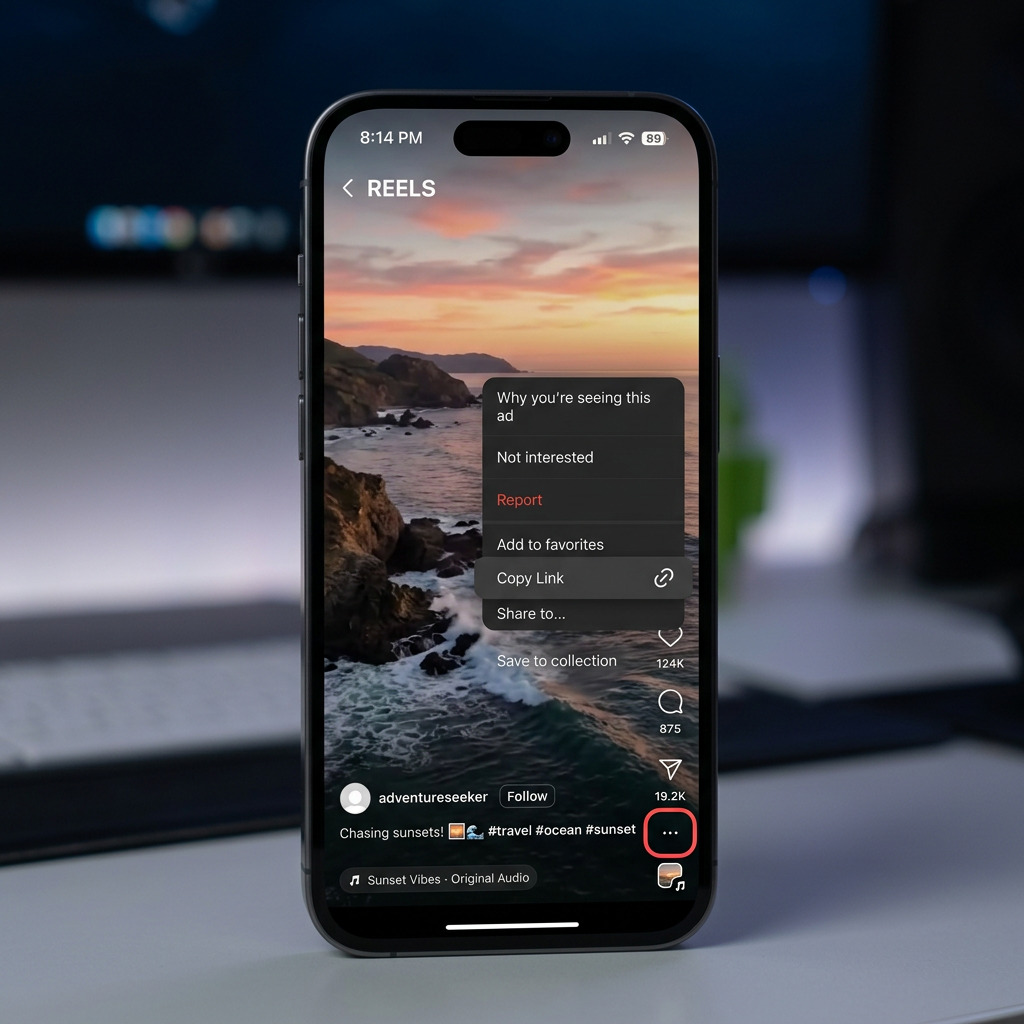
Tap the three dots and copy the link
Tap the ⋯ icon on the right side of the Reel. Select "Copy Link" from the menu. The URL is now on your clipboard — you won't see anything happen, that's normal.
Open Safari and go to LooMiReels
Switch to Safari and go to loomireels.com. Tap the input box and paste the link. Then tap Download.
Tap "Download" on the prompt Safari shows
Safari will show a small popup at the top of the screen asking if you want to download the file. Tap "Download". Do not ignore this — it disappears after a few seconds.
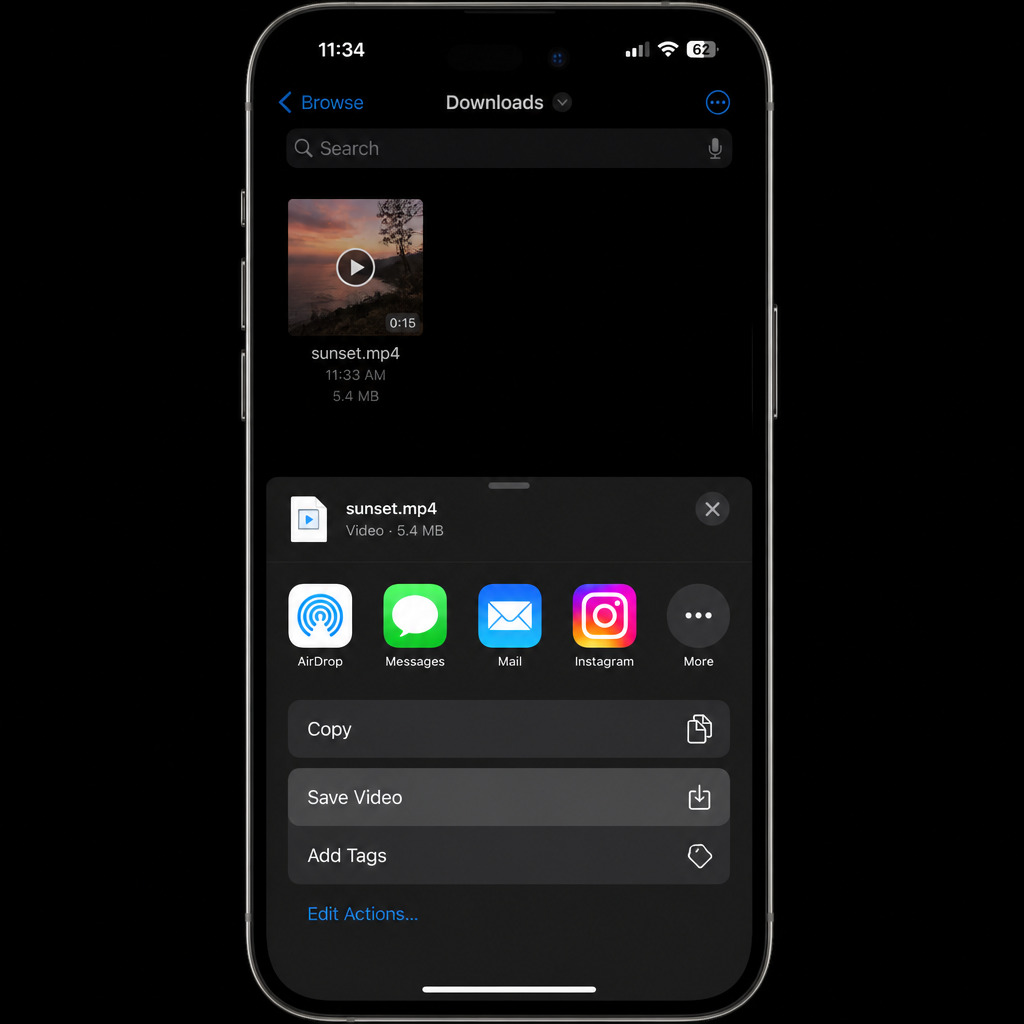
Find the video in Files, then save to Photos
Open the Files app → tap Browse → go to Downloads. Your Reel is there. Long press the file → tap "Save to Photos". Done.
It happens. The download prompt appears at the top of Safari for about 4 seconds, then disappears. If you missed it, tap the download icon (arrow pointing down) in the Safari toolbar — it shows all recent downloads and you can open the file from there.
The Part Most Guides Skip — Getting It Into Your Camera Roll
This is where iPhone trips people up. The file is downloaded — it's in Files → Downloads — but it's not in your Photos app yet. They're separate on iOS. A lot of people think the process failed when it didn't.
To move it: open Files, find the video, long press it, tap Share, then tap Save Video. That puts it directly into your Camera Roll, exactly like any other video you've recorded.
What If the Download Button Doesn't Appear?
A few things can cause this. The most common one: you pasted a profile URL instead of a Reel URL. They look similar, but they're different. A Reel URL looks like this:
https://www.instagram.com/reel/ABC123xyz/
A profile URL looks like this:
https://www.instagram.com/username/
If you copied the second type, go back to the Reel itself — tap into it so it's playing fullscreen — and copy the link from there using the ⋯ menu.
Chrome on iOS handles downloads differently from Safari — files sometimes open in a preview instead of downloading. If this happens, switch to Safari for this step. It takes 10 seconds and it's the most reliable option on iPhone.
Does the Video Quality Change?
No. What you're downloading is the same file Instagram stores on its servers — not a re-encoded copy, not a screen recording, not a compressed version. The quality is whatever the creator uploaded. If the original was 1080p, you get 1080p. If it was a slightly older Reel encoded at a lower bitrate, that's what you get too — but that's the original, not something the downloader degraded.
Can You Do This Without Safari — Using Shortcuts Instead?
Yes, there's another method some iPhone users prefer: the Apple Shortcuts app. You can build a shortcut that takes a copied Instagram URL and downloads the video automatically. It's more seamless once set up — no browser switching needed. The downside is it takes about 10 minutes to configure the first time, and it breaks occasionally when Instagram changes its URL structure.
For most people, the browser method above is faster and more reliable. But if you download Reels regularly and want something more frictionless, Shortcuts is worth looking into.
Is This Against Instagram's Rules?
Instagram's terms of service say you shouldn't scrape or download content using automated tools. That's aimed at bulk data harvesting — bots that download thousands of posts at once. Saving a Reel for personal use is a different thing entirely, and Instagram hasn't enforced those terms against individual users doing it manually.
The practical rule: download for personal use, don't repost without credit, don't claim someone else's content as your own. That's just basic decency regardless of what the terms say.