Why Most Android Apps Stop Working
Instagram regularly updates how it serves video content — changing URL structures, adding token authentication, tweaking how the app communicates with its servers. Every time that happens, third-party downloader apps break. The developer has to push an update, the app store has to approve it, and in the meantime the app just sits there showing errors.
A browser-based tool doesn't have this problem to the same degree. Updates happen on the server side — no app update required on your end, nothing to install, nothing to keep current. You open it, paste the link, and it either works or it doesn't. No guessing.
What You Actually Need
Three things, all of which you already have:
The Instagram app
Already on your phone. You need it to copy the link — that's all.
Chrome or any browser
Whatever you normally use. Chrome works best on Android — downloads go straight to your storage without any extra steps.
The video link
Not the profile link. Not the browser address bar URL. The specific link you copy from inside the post — we'll cover this exactly in Step 2.
Step-by-Step: How to Do It
Step 1 — Open the Reel or Video on Instagram
Find the video you want to save. Tap into it so it's playing fullscreen. This matters — copying the link from the feed preview sometimes gives you a different URL format that doesn't work with downloaders.
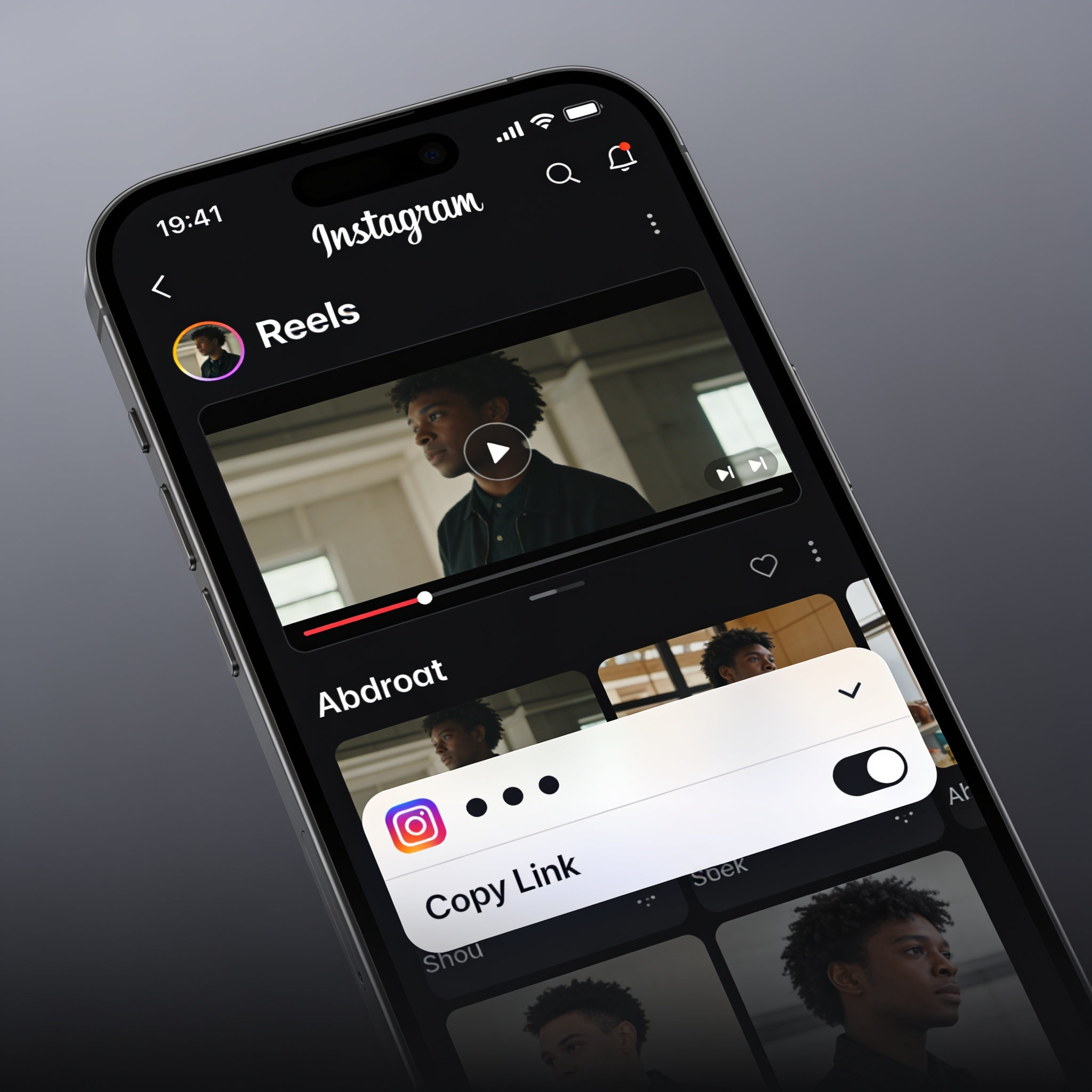
Step 2 — Tap the Three Dots and Copy the Link
You'll see three dots (⋯) on the right side of the screen — or at the bottom depending on your Instagram version. Tap them. From the menu that appears, tap Copy Link.
Nothing visible happens. That's normal — the URL is now sitting on your clipboard, ready to paste.
Some Instagram versions show a Share option instead of Copy Link directly. Tap Share, then look for the Copy Link button in the share sheet. It's the same link — just one extra tap to get there.
Step 3 — Open Chrome and Go to LooMiReels
Switch to Chrome and go to loomireels.com. Tap the input box at the top and paste the link. Then tap Download.
Step 4 — The File Downloads to Your Phone
On Android, Chrome downloads the file directly to your Downloads folder — no extra steps, no confirmation prompts, no hunting through a Files app. You'll see a small download bar at the bottom of Chrome when it's done. Tap it to open the video, or find it in your Gallery under Downloads.
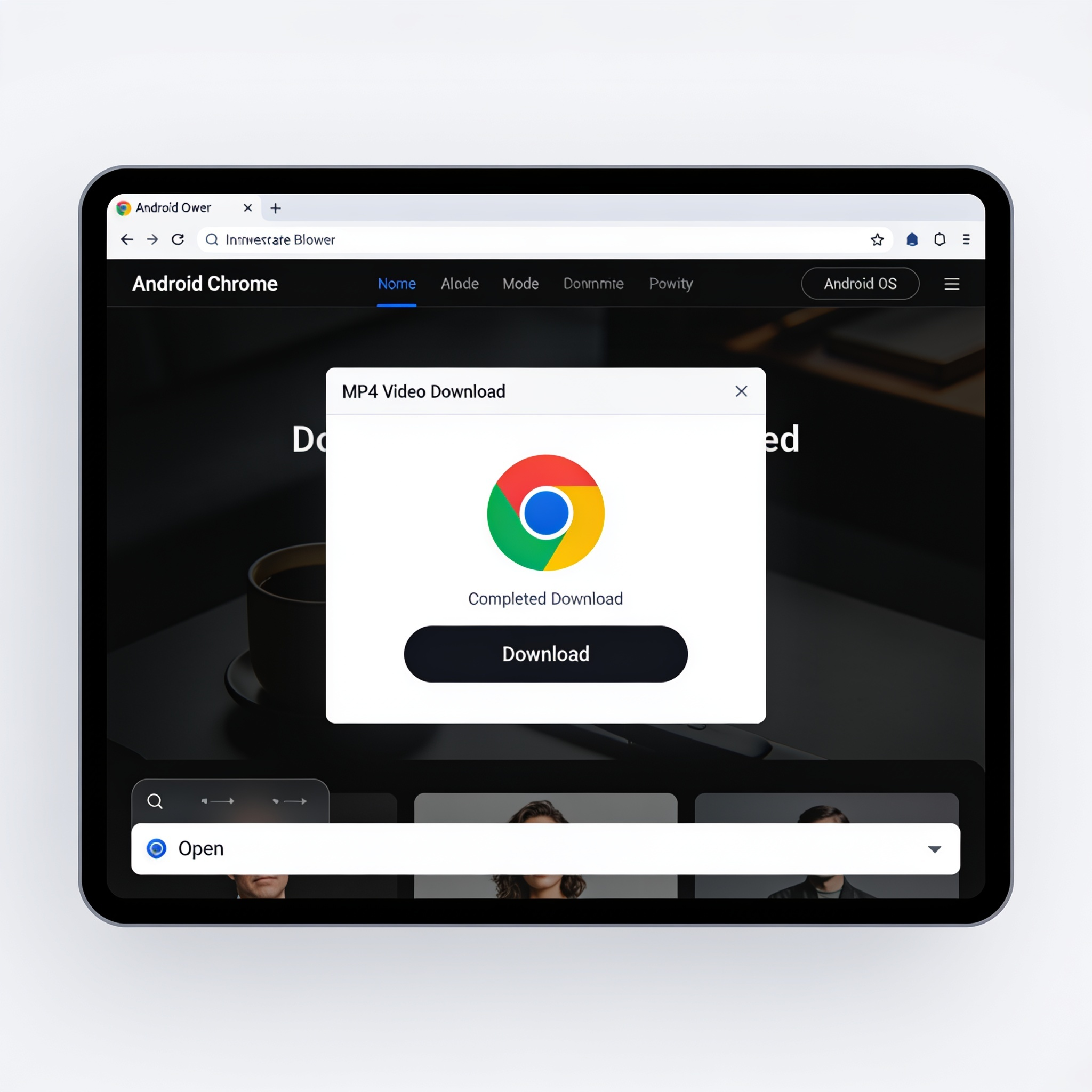
Chrome saves downloads to Internal Storage → Downloads. Open your Gallery or Files app and check the Downloads folder — it'll be there. On Samsung devices, it shows up in the Gallery automatically. On other Android phones, you may need to open the Files app to find it first.
The Download Worked But I Can't Find the Video
This is the most common complaint — and it's almost never actually a download failure. The file is there. The issue is where Android put it and whether your Gallery app knows about it yet.
Open the Files app (every Android has one — it might be called My Files, File Manager, or just Files depending on your phone brand). Go to Internal Storage → Downloads. Your video will be there with a name like video.mp4 or something similar.
To get it into your Gallery: long press the file, tap Share, then tap your Gallery app. Or simply move it to the Pictures or Movies folder — Gallery apps scan those folders automatically.
Why the Link You Copy Matters More Than You Think
Here's the thing most people get wrong. There are three different types of URLs you might copy for the same Instagram post — and only one of them actually works with a downloader.
Works: Link copied from inside the Instagram app using the ⋯ menu on the post itself. Looks like: instagram.com/reel/ABC123/
Doesn't work: The URL from your phone's browser address bar when you open Instagram in Chrome. This is a session-specific URL — it expires and often redirects to the app instead of the media.
Definitely doesn't work: The profile page URL. That's the account link, not the post link.
If you're getting errors, this is the first thing to check. Go back to Instagram, find the specific post, tap ⋯ on that post, and copy fresh.
What About Private Accounts?
Short answer: it won't work. Instagram doesn't serve private content publicly — the video file is locked behind authentication. A downloader works by fetching what Instagram makes publicly available. Private content simply isn't on that list.
If you follow a private account and want to save their content, the only legitimate option is to ask the creator directly to share the file with you. There's no technical workaround that doesn't involve logging into their account, which is obviously not something you should do.
Is the Video Quality the Same as the Original?
Yes — with one small caveat. What you're downloading is whatever Instagram stored on its servers. For most Reels uploaded recently, that's 1080p. For older content, or Reels uploaded from lower-quality sources, it might be less. That's not a downloader limitation — it's just what Instagram has.
What you will not get is a re-encoded, compressed, or degraded version. No watermark, no quality loss from the download process itself. The file that lands on your phone is the same file Instagram has been streaming to viewers.
Frequently Asked Questions
Does this work for Instagram Stories too?
Yes — the same process works for Stories. The only difference is timing. Stories disappear after 24 hours, so you need to download them while they're still up. Once they expire, no downloader can retrieve them.
Will Instagram know I downloaded the video?
No. You're accessing a publicly available file — the same way your browser "downloads" every image it displays. Instagram has no mechanism to track or notify creators when someone saves their public content using an external tool.
Does this work on older Android versions?
Yes, as long as your Chrome is reasonably up to date. The tool runs in the browser — it doesn't depend on any Android-specific feature. If your phone can open a webpage, it can run this.